Frequently Asked Questions

General

This “SERVICE ONLY” screw terminal is for internal use in case of repair of the device.

The commons of different devices must not be connected together. The reason behind this point is that each device generates its own voltage of reference, so if you join different commons you can expect abnormal behaviour in those inputs and, in extreme cases, hardware damage due to the different voltage utilised by each device.

Is not necessary to bridge the commons of the same device as they are bridged internally.

Previously, a KNX line segment supported up to 64 devices, requiring line repeaters to expand up to 256 devices. The reason for these limits is to ensure the integrity of the KNX telegram as it passes through multiple devices.

The TP-256 standard now allows 256 devices on a single line without repeaters, thanks to advancements in electronics that ensure the integrity of KNX telegrams over more devices.

Zennio devices are TP-256.

There are two standards for testing the properties of conductors: IEC (mm2) and UL (AWG). Both standards have different tests, and there is no direct cross-section equivalence between them. For this reason, in our data sheets we include compatible cable cross-sections that meet the requirements of both tests.

ALLinBOX

It is true that there are no external buttons as in the rest of the actuators to act on relays. However, there is always the option of acting directly on the outputs with the IR remote control.

Climate

KLIC Devices:

  • Purpose: These are Zennio gateways designed to control specific brands of air-conditioning units via KNX in a bidirectional way.
  • Connection: They connect directly to the indoor unit’s ports, acting as a wired control.
  • Functionality: Allows two-way communication, receiving status updates and error messages from the air-conditioning unit.


IRSC Plus:

  • Purpose: This is a KNX infrared controller from Zennio for air conditioners. It can manage over 300 models from different manufacturers.
  • Connection: Acts like a remote control, sending one-way signals.
  • Functionality: Cannot monitor errors or receive feedback about the unit’s status.


When to Use Each:

  • KLIC Devices: Use these when you need complete control and monitoring of your air-conditioning units, including receiving feedback and error messages.
  • IRSC Plus: Use this when you need a versatile controller that works with many A/C models or if you do not have a specific gateway for your brand.

Yes, it is possible to integrate new IR remote controllers with IRSC Plus. First of all, please check if your model is listed in the Correspondence Table IRSC Plus. If it does not appear in the correspondence table, it only means that the IRSC Plus has not been tested with this model.

To check if it can be integrated, you can contact us by writing to support@zennio.com or through the form. Please attach the model of the remote and a picture of the front and back of the controller in your request.

2-Pipe System:

  • No Heat Recovery Unit: All units operate in the same mode (either heating or cooling).
  • Single Mode Control: One indoor unit determines the operation mode for the entire system.


3-Pipe System:

  • Includes Heat Recovery Unit: Each indoor unit can operate independently in heating or cooling mode.
  • Upstream Flexibility: Units can work in different modes, but after the heat recovery unit, the system functions like a 2-pipe system, where all units must work in the same mode controlled by one unit.


In summary, a 2-pipe system has all units working in the same mode, while a 3-pipe system allows for more flexibility with independent mode operation before the heat recovery unit.

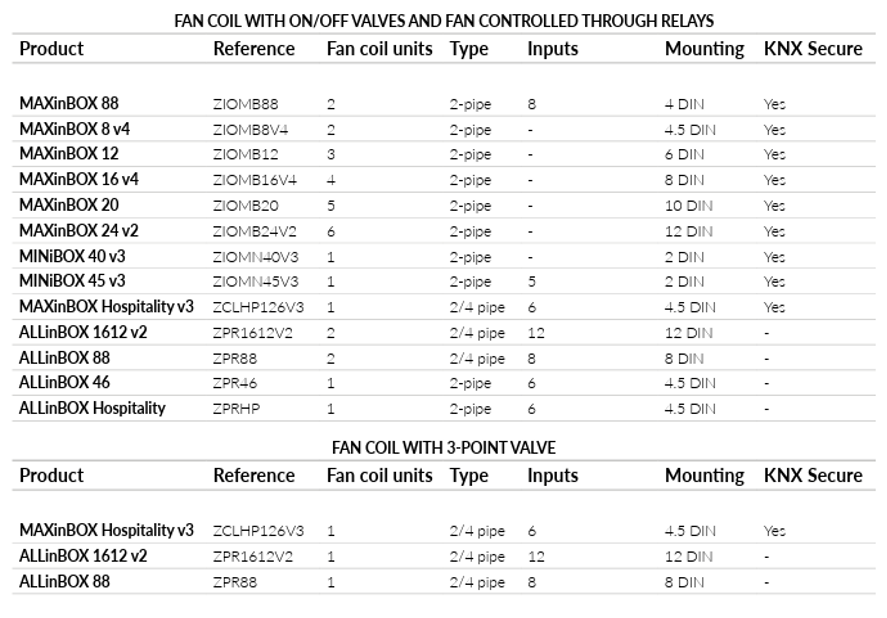
Depending on the number of pipes, thermostat control, type of valve and fan, the following options are available:

A. Valve and fan speed controlled through relays:

  • ALLinBOX 1612 v2: up to 2 units of 2/4-pipe fan coil with On/Off or 3-point valve and up to 3 fan speeds. Thermostat control over the valve/fan.
  • ALLinBOX 88: 1 unit of 2/4-pipe fan coil with On/Off or 3-point valve and up to 3 fan speeds. Thermostat control over the valve/fan.
  • ALLinBOX 46: 1 unit of 2-pipe fan coil with On/Off and up to 3 fan speeds. Thermostat control over the valve/fan.
  • ALLinBOX Hospitality: 1 unit of 2-pipe fan coil with up to 3 fan speeds.
  • MAXinBOX 16 v4: 4 units of 2-pipe fan coil with up to 3 fan speeds.
  • MAXinBOX 8 v4: 2 units of 2-pipe fan coil with up to 3 fan speeds.
  • MAXinBOX 88: 2 units of 2-pipe fan coil with up to 3 fan speeds.
  • MAXinBOX 12: 3 units of 2-pipe fan coil with up to 3 fan speeds.
  • MAXinBOX 20: up to 5 units of 2-pipe fan coil with up to 3 fan speeds.
  • MAXinBOX 24 v2: up to 6 units of 2-pipe fan coil with up to 3 fan speeds.
  • MINIBOX 40 v3: 1 unit of 2-pipe fan coil with up to 3 fan speeds.
  • MINIBOX 45 v3: 1 unit of 2-pipe fan coil with up to 3 fan speeds.
  • MAXinBOX Hospitality v3: 1 unit of 2/4-pipe fan coil with On/Off or 3-point valve and up to 3 fan speeds. Thermostat control over the valve/fan.


B. Valve controlled through 0-10V signal and fan speed activated with relays:

  • MAXinBOX FC 0-10V VALVE: 1 unit of 2/4-pipe fan coil with up to 4 fan speeds. Thermostat control over the valve.


C. Valve controlled by relays and fan speed regulation through 0-10 V signal.

  • MAXinBOX FC 0-10V FAN: 2 units of 2/4-pipe fan coil and fan speed controlled with 0-10V signal. Thermostat control over the fan.


D. Valve or fan speed controlled with 0-10 V signals. Please note: In fan coil systems where one of the control signals is not 0–10 V, an additional actuator is required to control the non-0–10 V element.

  • MINiBOX 0-10V X3: 2/4-pipe fan coil where fan and valves are controlled with 0-10 V signals. Thermostat control over the valve/fan.
  • MINiBOX 0-10V X2: 2/4-pipe fan coil where fan and valves are controlled with 0-10 V signals. Thermostat control over the valve/fan.
  • MINiBOX 0-10V X1: 2/4-pipe fan coil where fan or valves are controlled with 0-10 V signals.


Here is a brief summary:

DALI

The main difference between the two devices is that the DALI BOX Interface allows individual control of each ballast, which enables the creation and control of additional groups through KNX. In contrast, the DALI BOX Broadcast only allows commands to be sent in broadcast mode, it is not possible to control each ballast individually.

In addition, the DALI BOX Interface allows the lighting control of emergency ballasts (DT1) and color ballasts (DT8), while the DALI BOX Broadcast does not offer this functionality.

At the hardware level, the DALI BOX Interface incorporates a display that, together with the DCA, facilitates addressing a ballast when it is replaced, as well as commissioning and assigning ballasts to groups. It is also capable of individually reporting errors for each ballast, allowing simpler maintenance.

Feature

DALI BOX

InBOX DALI

No. of ballasts

64

16

Installation

DIN rail (4.5 modules)

Flush mounting

Powered by

230 V

KNX bus only

No, our DALI BOX devices come with an internal power supply that powers the ballasts. In the case of the inBOX DALI, the ballasts are powered by the KNX bus, which explains the limitation of 16 ballasts.

Please note: Only one power supply unit is allowed on a single DALI line. Since our interfaces already include this power supply, it will not be possible to introduce any other element with a power supply in the installation (except for the inBOX DALI).

  • DT1: emergency ballasts (also known as converters), only with the DALI BOX Interface as they need to be controlled individually.
  • DT6: LED type ballasts.
  • DT8: color ballasts. RGB / RGBW / Color temperature. XY coordinates, not yet supported by the gateway.
  • The gateway could be compatible with other types of ballasts (fluorescent, incandescent, relays) as long as they accept the generic DALI commands.

Inputs

The following table explains the main differences between them:


Feature

BIN-T

QUAD v3

Input Types

Binary inputs* + input for temperature probe

Analog-digital inputs

Outputs Type

LED outputs

Not applicable

Thermostat

1

4

KNX Secure

YES

YES

* Can be configured as a pulse counter, even double.

QUAD v3, unlike the BIN-T, allows the connection of analogue inputs. These analogue inputs can be configured not only as temperature probes but also as motion sensor, which can be set up as customised NTC probes, introducing your own resistance/temperature parameters, or the “Zennio probes”.

The BIN-T device can configure its binary input as a pulse counter, including a double pulse counter. Additionally, it allows its channels to be configured as LED outputs.

Power Supplies

According to KNX standard this possibility depends on each manufacturer. Our KUPSupply allows you to even connect them together (at a distance of 0 meters between them). Indeed, it is possible to connect in parallel. However, there are certain restrictions for this setup:

  • The power supplies must not have the “Overload” LED turned on. If this is the case, you would need to install them separated on the KNX system until the overload error disappears.
  • It is likely that the combination of two power supplies in parallel does not provide the sum of the two. As each power supply has a different workload, it might be possible to one reach the overload state before the other supplies the maximum power.

Yes, but it is not recommended. Power supplies of different sizes can cause imbalance. The smaller power supply can limit the larger one, which can lead to inefficient operation. For example, if you use a 640 mA power supply and a 320 mA power supply, and the total consumption is close to 960 mA, the current is split evenly. This can cause one power supply to work beyond its capacity and the other power supply to work below its capacity. It is best to use two supplies of the same size to avoid problems.

It is possible, although it is recommended to use a power supply of the same size as the ALLinBOX itself. It must be taken into account that ALLinBOX must always be powered at 230 V, since in case of being powered through the KNX BUS, its operation may not be correct, as well as that of the KNX power supply of the installation.

No, the ALLinBOX must always be powered with 230VAC. If it is powered through the KNX bus instead, its operation might not be correct, and it could also affect the performance of the KNX power supply in your installation.

Lighting

Zennio offers multiple lighting control options based on the type of load and circuit:

  • On/Off Circuits: For these, simply connect the load to the output of any actuator. Zennio’s multifunction actuators are suitable for this purpose.


  • Dimmable Loads (RLC/CFL/LED, 110/230 VAC): Use the DIMInBOX DX4, DX2, DX1, inBOX DIM, or NarrowDIM X4/X2, depending on the load type and the number of circuits you wish to control.


  • LED Strips Operating on Direct Current: Choose between Lumento DX4/X4/X3/X2 v2 or Lumento C4/C3, depending on whether the strips operate with constant current or constant voltage.


  • Ballast Control via DALI Protocol: We offer DALI gateways for this purpose. The main difference between the DALI BOX Broadcast and the DALI Interface is that the latter, in addition to allowing individual control of each ballast, allows manual addressing during installation, thanks to its built-in display for navigation. Additionally, we also offer the inBOX DALI 16, a compact interface for flush mounting that allows control of up to 16 independent DALI ballasts.

For controlling a LED strip with only On/Off functionality, the suitable device would be one of our multifunction actuators. These actuators are versatile and can handle various types of loads, including LED strips.

To control the On/Off and dimming of LED strips, you need to choose the right dimmer based on the type of LED strip and whether it operates on constant voltage or constant current.

  • RLC /CFL / LED loads (110V/230 VAC): DIMinBOX DX, inBOX DIM or NarrowDIM X. 
  • LEDS strips (12/24 VDC): Lumento DX or Lumento C. 


For AC-operated LED we have the following options:

  • NarrowDIM X2/X4: for DIN rail mounting (4.5 units) with 2/4 channels. Output power varies depending on whether the channels are used independently, in pairs, or all combined.
  • DIMinBOX DX2/DX4: for DIN rail mounting (8 units) with 2/4 channels. Output power varies depending on whether the channels are used independently, in pairs, or all combined.
  • InBOX DIM: For flush mounting with one channel for up to 250 W at 230 VAC (200 W at 110-125 VAC).

For a DC-operated LED, if operating at constant voltage, we have:

  • Lumento DX4 v2: 4 channels, featuring constant voltage The dimming channels can be configured as combinable independent channels, an RGBW channel, RGB+W channel and 2 TW channels.
  • Lumento X4 v2: 4 channels, featuring constant voltage The dimming channels can be configured as independent channels, RGBW channel, RGB+W channels and 2 TW channels.
  • Lumento X3 v2: 3 channels, featuring constant voltage The dimming channels can be configured as independent channels, RGB channel and 1 TW channel + 1 independent channel.
  • Lumento X2 v2: 2 channels, featuring constant voltage The dimming channels can be configured as independent channel o as TW channel.


If operating at constant current:
 

  • Lumento C4: 4 channels, featuring constant current regulation. The dimming channels can be configured as 4 independent channels, 1 RGBW channel or 1 RGB channel + 1 individual channel.
  • Lumento C3: 3 channels, featuring constant current regulation. The dimming channels can be configured as 3 independent channels or 1 RGB channel. 


For accurate selection, you can use our Lumento calulator to help determine the best device based on your LED strip’s requirements.

Load Disconnection:

  • DIMinBOX DX: Includes a load disconnection relay in each channel, ensuring complete shutdown of the load.
  • NarrowDIM X: Does not have a disconnection relay, which means a small residual current might remain when turned off. This can cause very small loads to remain slightly powered, although this is rare.

Size:

  • NarrowDIM X: More compact and smaller, but with a lower power capacity.
  • DIMinBOX DX: Larger, but can handle more power.


Both devices allow their channels to be connected in parallel to increase the total power capacity. For more details, please refer to the device datasheet.

Yes, we have dimmable actuators with load disconnection relay. This is one of the main differences between our NarrowDIM and inBOX DIM devices, and the DIMinBOX devices, the first two maintain a residual current when the switch-off order is sent, as they do not have that internal relay that allows the load disconnection.

This means that, if the load connected to the NarrowDIM or inBOX DIM devices is very small, it can be subtly switched on as it is still powered, although this is unusual and occurs in very specific cases. However, the DIMinBOX devices ensure complete shutdown as they have a disconnection relay in each of their channels.

Other significant difference is the size, with Narrow DIM being more attractive as it is smaller, although with lower power to control. In any case, both NarrowDIM and DIMinBOX allow their channels to be connected in parallel to increase the power to be controlled. For more information, take a look at the datasheet of the device.

IndustrialBOX

If the switch of the IndustrialBOX is manually operated, this information does not reach the KNX Bus, so the action is carried out, opening or closing the relay, but the status does not change on the KNX Bus. However, if we modify the order from ETS, in addition to being carried out, the status will be saved. That is, if I have turned off the switch (off state not saved) and now I send an off command through ETS, this action will not do anything in the relay, because it was already in that state but the off state will be saved (since it has been sent by ETS).

You can set up different sending modes: a periodic sending by selecting the desired time interval, a send when the value changes, or both a periodic sending and a send when the value changes.

Yes, you can configure alarms for both, excess (upper limit) and insufficient power (lower limit), is done through ETS parameters.

IWAC

The IWAC Out Keypad works standalone, does not require any server and is KNX Secure. So in order to do the installation you will only need an electric lock and a relay that is compatible with your electric lock. The installation works this way:

  1. The IWAC Out Keypad send an open telegram to the KNX bus.
  2. The relay recieves the telegram and closes.
  3. The electric lock recieves the power and opens the door.

Yes, it is possible. There are two ways to control the IWAC Out Keypad code:
 
Remote Code Management:
Allows to add, modify, or delete access codes remotely using KNX objects or parameters in ETS. This functionality is particularly useful for managing check-ins and check-outs in temporary rentals.
 

Through the own keypad:

  • Modify code: *MASTER_CODE*POS*NEW_CODE#
  • Delete code: *MASTER_CODE*POS#
  • Overwrite master code: *MASTER_CODE**NEW_MASTER_CODE#


Flexibility and Security:
The IWAC Out Keypad supports up to 99 individual codes, in addition to the master code. Codes can be enabled or disabled on a per-user basis, providing detailed access control and ensuring the highest security standards.

With the IWAC Out keypad, you can manage access codes that change after a certain time or request. When paired with devices like the Z50, Z70 v2, or Z100, you can remotely execute code refreshes using our Zennio Remote app. 

Yes, with Z-Access, our card writing and Bluetooth ® key generating software. Z-Access allows room access reports for staff, knowing who has written new cards or cancelling existing keys so they are no longer valid. Z-Access communicates with all door readers, IWAC Display and IWAC Out, and it can work offline.

KNX Secure

Yes, KNX Secure mode must then be disabled for the corresponding group addresses.

Yes, the Secure setup can be enabled or disabled in the ETS.

Yes, you can communicate between two KNX Secure devices using security even if the line couplers in the system are not KNX Secure enabled. However, it’s important to understand the implications of this setup.

If the line couplers are not KNX Secure, they will not be able to decrypt or understand the secured messages passing through them. However, they can still forward these encrypted messages across the lines they connect.

BCU protects each device while Project password protects all the project.

Yes.

Energy Monitoring

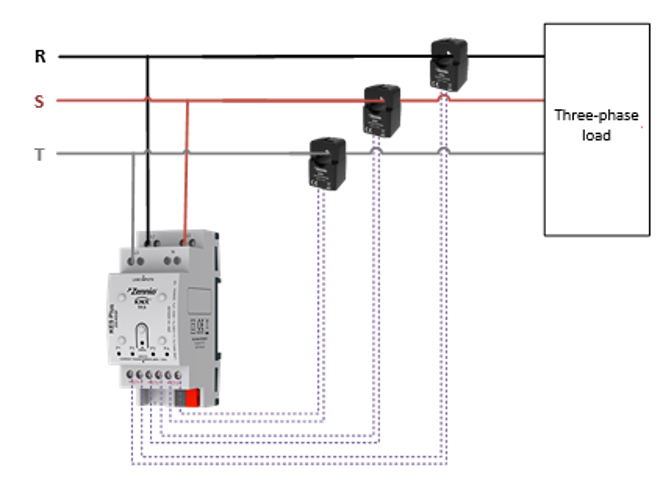
The maximum current that the KES Plus supports per channel is 260 A, the 600 A clamp meters are required to measure this current.

Yes, this combination is possible. You can find an installation diagram below.
While it is recommended to use S0 type B pulses for the KCI 4 S0, some instances have shown compatibility with other pulse types. However, this compatibility is not guaranteed, and we cannot ensure correct operation with non-S0 pulses.

If you have any questions regarding the compatibility of your pulse counter with our device, please feel free to email us at support@zennio.com.

It is always recommended to use KCI 4 S0, this device is designed to measure S0 class B pulses sent by potential free counters. This option is much more accurate than the KEM as the K and a parameters are defined for a specific flow, as this flow data is variable in a house, the values obtained during monitoring with KEM will not be accurate.

Multimedia

Yes, both connections can be made simultaneously, however, they cannot play at the same time.

One will have priority over the other, and this priority is configured via ETS. So, when starting playback on the source configured as priority, the audio of the secondary source will be stopped until the decoupling/disconnection of the first one is detected.

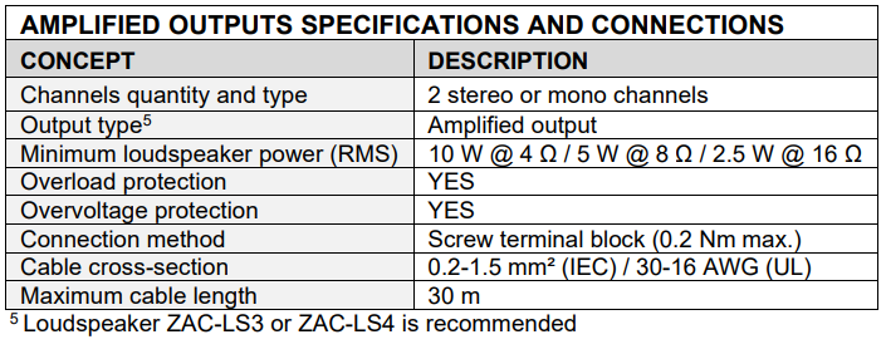
Yes, amplifiers can be connected, as long as they meet all the requirements as the minimum loudspeaker power.
Touch Panels

The Z50 is part of our new family of touchscreens, featuring a new graphical environment, higher resolution, and a larger display that can be oriented both portrait and landscape. This updated interface includes customizable icons, different box sizes, and two themes (night/light) to adapt to various lighting conditions.

The Z50 also introduces exciting new functionalities such as voice control through voice assistants like Alexa and Google Home. Additionally, the Z50, along with the Z70 v2 and Z100, allows Video Intercom integration and can display up to 10 IP cameras on a navigable panel.

Our new touchscreen family boasts a more powerful and user-friendly energy monitor, along with technical features such as the Proximity and Luminosity Sensor. We encourage you to check the Manual to explore all these new functionalities in detail.

Unlike the Z41 series, where each model had specific hardware and limited functionalities based on the type of screen you purchased, the new generation allows you to activate additional features through licenses whenever you need them.

The Z50 offers significant advantages and superior performance. Overall, the Z50 provides a more versatile and powerful solution for your needs.

Summary

Feature

Z41

Z50

Display

Smaller display with lower resolution

Larger display with higher resolution and new graphical environment

Interface

Standard interface

Customizable icons, different box sizes, and two themes (night/light)

Voice Control via Alexa and Google

Not available

Available by acquiring the ZenVoice (8500008 ) and Smartphone Control Licenses

Video Intercom Integration

Available only in Z41 COM

Available by acquiring the Video Intercom License (8500007)

Remote Control

Available only in Z41 COM and Z41 Pro

Available by acquiring the Remote Control License (8500006)

IP Camera Support

Not available

Display up to 10 IP cameras on a navigable panel

Energy Monitor

Less advanced

More powerful and user-friendly energy monitor

Internal Temperature Probe

Available

Available in Z50

Analog-Digital Inputs

2 inputs only available in Z41 Pro and Z41 Lite

2 inputs


Yes, you will have to change the metallic plate to which the Z41 is anchored for the Z50 that is included, but the hole and the mechanism box will be the same.

The following table explains the main differences between them:


Feature

Z50

Z70 v2

Z100

Display Size

5”

7”

10”

Number of Controls

Up to 96

Up to 144

Up to 180

Inbuilt Temperature Probe

Yes

Yes

No

Analog-Digital Inputs

2

4

4

Orientation

Portrait / Landscape

Landscape

Landscape


No, the Z50/Z70v2/Z100 are connected to the internet via ethernet cable.

Yes, as the touchscreen communicates directly with the server.

  • Remote Control License. Unlock the convenience of controlling your system remotely through the Zennio Remote app on your smartphone or tablet. Stay connected and manage your devices from anywhere.
  • Video Intercom License. This license allows a complete integration with the video intercom systems.
  • ZenVoice License. Experience the ease of voice control with voice assistants like Alexa orGoogle Home. This license brings hands-free operation to your system. (Note: Requires the Remote Control License.)
  • Virtual licenses are license codes that can be redeemed for a license file (.lic) to be loaded into a touch panel. When ordering a virtual license, the corresponding license code will be loaded to your customer profile in Zennio License Manager. There are three virtual licenses: 8500006, 8500007 and 8500008, for remote control, GetFace IP video intercom and voice control, respectively.
  • License boxes, as shown in the picture, include a license code (CL), so that the end customer can redeem it. There are also three different license boxes: ZLIC70RCBX for remote control, ZLIC70VPBX for video intercom and ZLICZVBX for voice control.
 

No, you do not need a licence to view an IP camera from a Z50/Z70v2/Z100 touchscreen. You simply need to configure the IP settings of your display and IP camera following the instructions provided in section 2.1.15 of the User Manual.

Yes, internal calls functionality requires a license installation (Video Intercom License). If not, even being possible to configure it from ETS, its use will not be accessible.

Yes, from Zennio Remote it is possible to view the integrated IP cameras on the touchscreen.

Here’s what you need:

  • An IP camera that matches the specifications in the touchscreen’s technical sheet.
  • Internet access on your touchscreen.
  • Remote Control License.

Once you have these, you can easily access your IP cameras from your smartphone with Zennio Remote.

Unfortunately, no. Each version of the Z41 was designed with specific hardware to include or exclude certain functionalities. The Z41 COM supports video intercom and remote control, the Z41 Pro supports just remote control, and the Z41 Lite supports neither. Indeed, ZenVoice was developed after the Z41 series was released, so it is not compatible with those models.

With our new generation of touchscreens—Z50, Z70 v2, and Z100—we’ve changed our approach. Now, all functionalities are available in each device and can be activated by purchasing specific licenses. This means you can add new features to your touchscreen later on by acquiring additional licenses.

To avoid having to redo the programming from scratch, you can use the free ETS APP “Zennio Parameter Copier”, which helps in the versions update process of Zennio products. You only have to select the same device with the two versions, and the copy is made. After copying, pop-up windows will appear to indicate any differences between the versions, which should be reviewed in case they have not been copied correctly.

Link to app and manual:

https://www.zennio.com/es/documents/zennio_parameter_copier_
https://zennio.com/download/manual_Parameter_copier_es

Please note that from version 3.7 onwards in Z50/Z70 v2/Z100, it is not necessary to update the application program and the firmware, as the versions are compatible.

Material:

  • Tecla Series: Made of polycarbonate.
  • Flat Series: Made of glass.


Customization:

  • Tecla Series: You can customize the backlit icons.
  • Flat Series: In addition to customizing backlit icons, you can also add images, logos, and text to the glass. Note that these additional customizations will not be backlit.


Both series can be customized through Touch My Design tool.

Shutters

The real advantage of using shutter-specific actuators is that the relays connected to the shutter motor wires are specially designed for this purpose. In addition, they are also a great advantage on an economic level.

In the case of the ShutterBOX Drive, it also performs automatic travel time measurement by means of current detection and incorporates a solar tracking module.

The automatic measurement performed by our ShutterBOX Drive takes into account the electric current consumed by the shutter motor during its operation, detecting the upper and lower limits of the shutter by the current increase and, having calculated the movement between limits, the actuator knows the up and down times.

SOFT Push Buttons

There are two types of soft pushbuttons: non-KNX and KNX. The non-KNX are designed to be connected to the binary inputs, so for the installation, any KNX device with binary inputs is required

On the other hand, KNX pushbuttons do not require any additional device for installation, they simply need to be connected directly to the KNX bus.

Yes, we can guarantee that the combination works correctly, as we have performed numerous tests.

RemoteBOX

There is no difference, the RemoteBOX is designed as an alternative to touchscreens, offering the same control capabilities. The only differences is the hardware: while touchscreens allow you to control the installation directly, the RemoteBOX allows exclusively remote control through the app or web server, supports up to 100 controls, expandable up to 180 with a license.

Both devices operate independently, allowing you to configure different controls on each. For instance, you can use a Z50, Z70 v2, or Z100 for primary local control, and complement it with a RemoteBOX configured with all controls for full remote management.

Having both devices in the same installation is possible, though not required.

No, it is not necessary. The RemoteBOX comes with the remote control license included.
The additional licenses available are either to expand the number of controls from 100 upto a maximum of 180, or to enable voice control through the ZenVoice license.

No, that is not possible. The RemoteBOX has a maximum limit of 180 controls, so you cannot purchase multiple licenses for the same device to increase the number of controls. The extension license is not cumulative.

No, the RemoteBOX is designed to have the remote control of the installation. It does not have KNX-IP interface functionality, so it cannot be used to download programming.

No, internet access is required in order to control the installation, as the system operates through a cloud-based service.

No, this is not possible. However, voice control is available with the ZenVoice license.

The initial pairing has to be done through WebServer Tool. Go to the “Remote Control” section and click on “New Pairing” to generate a QR code.

RF

You will need two RF coupler, one for each line. Below you can find a scheme of installation:
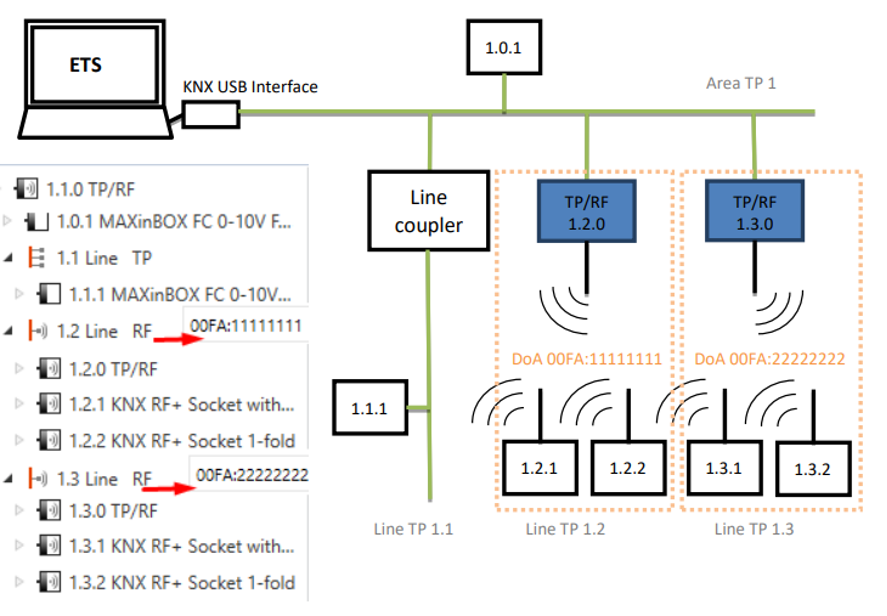
In the configuration, to make use of the RF coupler, you will have to create a new RF line to include the RF coupler and the RF devices to be controlled, it is not possible to mix TP and Rf devices in the same segment. For example, in the previous image, the area has three lines where:

  • The first line is TP 
  • The second and thrid are RF, where the RF coupler has been included. As we say, this coupler cannot be included in the downstream RF segment

Sensors

Presentia Wx v2 is a motion detector for in-wall flush mounting and is specially designed for hallways as it detects transverse movement. There is no maximum height, but since it only detects transverse movements, it should be installed at a height where detection is posible. Our recommendation is to install from close to the ground (detecting feet) up to about 1 m.

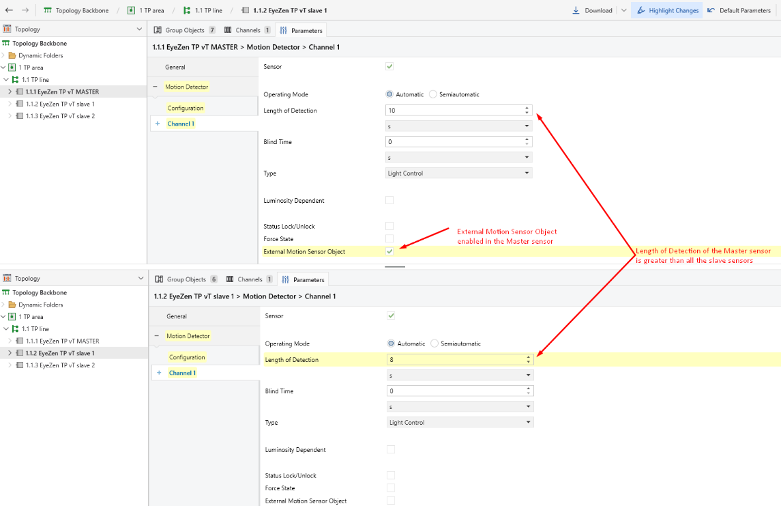
You will need to establish one of your sensors as the master detector and the other one as slave

  • Master detector: you should enable the External Motion Sensor Object in the ETS parameter configuration. 
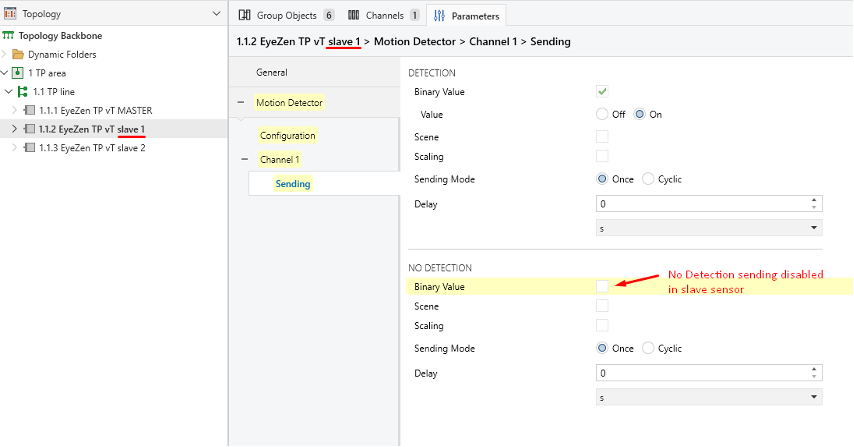
  • Slave detector: should be configured to send the value 1 for detection and not send anything in the no-detection state.

Then, you need to link the detection output (value 1) objects of all slaves with the External Motion Detection of the sensor you selected as the master. 
 
Also, the Length of Detection time you configure in the master sensor must be greater than the detection lengths of all the slave detectors. 
In this way, only the master sensor will transmit the detection and no detection state to the actuators and any other slave sensors will just transmit the detection binary value 1 to the master sensor.
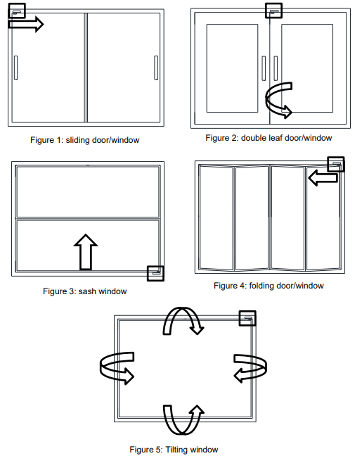
  • Sliding
  • Double leaf
  • Sash
  • Folding
  • Tilting


Zennio Remote

The supported operating system versions for Zennio Remote are:

  • Android 11 or later (with Google Play Services)
  • iOS 16 or later.

Of course! Both Z41 Pro and Z41 COM include an IP port for remote control from your smartphone/tablet through Zennio Remote.

For Z41 Pro and Z41 COM, QR code pairing is not available. For these devices, pairing will be done by an alphanumeric code .

Zennio devices that can use the Zennio Remote application are the following:

  • Z41 Pro.
  • Z41 COM.
  • Z50, Z70 v2 and Z100 (with license).
  • RemoteBOX

Yes! Due to server capacity limits, you can link up to 49 smartphones/tablets to the same touchscreen/RemoteBOX.

Yes! There is also a pairing limit. You can pair up to 90 touchscreens to the same mobile device.

Zennio Remote closes automatically after 1 hour of running, to guarantee its proper functioning. So, if it closes, you need to reopen the remote control for the device.

No! Both the smartphone/tablet from which you use the Zennio Remote application and the touchscreen/RemoteBOX you want to control must have an internet connection.

To remotely control a touchscreen, it’s necessary to go through a pairing process between the screen and the smartphone. This process can be done in two ways:
  • Pairing with QR code (not available for Z41 Pro and Z41 COM) : To begin this process, press the button located in the bottom right corner of the device list.
  • On the new page, the camera of the mobile device is opened showing a frame. Pointing the camera to the QR generated in the device to be paired with, automatically executes the pairing process.
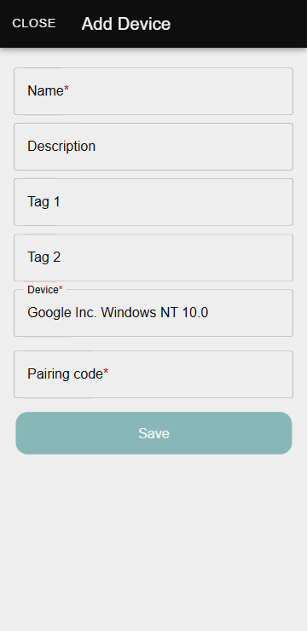
  • Pairing with alphanumeric code : for this pairing method, a pairing form is required. To access this form, tap the button in the bottom right corner of the device list. The form includes the following inputs, where the pairing code (required) is a 9-character alphanumeric code, which must be requested and displayed from the device to be paired:


Once the pairing code is introduced, press save, and the touchscreen will synchronize with the Zennio Remote application.

  • Local Discovery Pairing: This feature allows automatic detection of compatible devices on the same local network, without the need to manually enter an alphanumeric code or scan a QR code.


To begin this process, press the button in the bottom right corner of the device list and then press the 3rd one related to local pairing. At this point, the app will automatically begin scanning the local network.

The app will display a list of compatible devices available on the same local network. Next, select the device you want to pair and enter the pairing password. If the password is correct, the device will pair automatically and appear in the device list. Please note if you have not modified the password, it will be the default password of Webserver Tools.

No! You don’t have top air again because the pairing is associated with the user account. Therefore, if you replace your smartphone, you just need to download the Zennio Remote application and log in with the user that was paired with the touchscreen. If you don’t have a Zennio Remote account, register in the application before replacing your smartphone to avoid losing your pairings.

Going through the configuration page on your touchscreen, you can find the pairing box. In one of the corners, there is an indicator with an Earth globe icon, which will be followed by a warning icon in case there is any error in the internet connection or to the server.

The indicators are shown below:
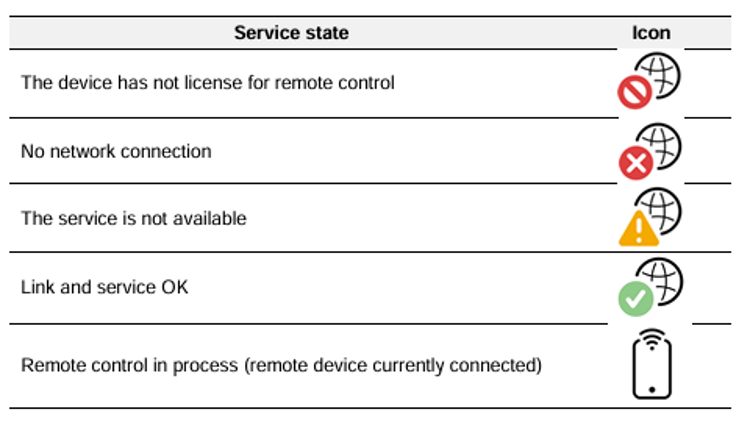
 

In that case, restart your screen from the device box located on the configuration page. After this restart, the screen should show as connected again in Zennio Remote.

If you have difficulties accessing the remote control of your touchscreen for the first time, we recommend registering as a user in Zennio Remote.

Yes! If none of the points mentioned earlier helps, and you continue to face issues, you can try the following possible solutions:

  • Manually update your WebView version (for Android users only).
  • Manually update your Chrome version (for Android users only).
  • Clear the app’s data and cache (if you haven’t registered an account, your pairings might be lost).
  • Uninstall the app and reinstall it by downloading the latest updated version from Google Play or the App Store (not applicable for Android users with versions earlier than Android 11, as they would lose access to their screens).

To change the password, follow these steps:
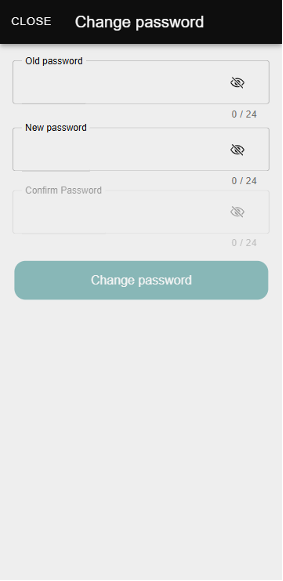
  1. Click on the  icon next to the password field. This will open the following window:

  1. Complete the form fields:
    1. Old Password: Enter the current password.
    2. New Password: Specify the new password, ensuring it meets the following requirements:
      1. At least 8 characters.
      2. Includes numbers, lowercase letters, and uppercase letters.
    3. Confirm Password: Re-enter the new password to verify it.
  2. Save the changes.

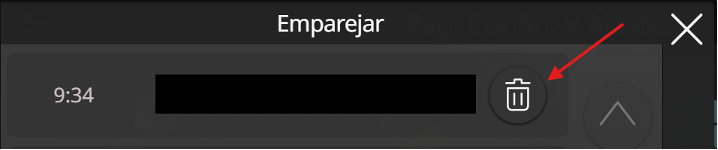
To delete an associated account, access the pairing menu and click and hold the trash icon on the right side. This will remove the pairing with that account.
 

The application automatically adjusts to the language set as the default on the mobile or web browser. To use the application in English, the device language must be changed to English.

Regarding the language of the controls, they are displayed in the same language configured on the touchscreen. Changing the display language requires that the option be enabled in ETS.

If this is your case, we encourage you to contact the person who installed your touchscreen or your Zennio distributor. They are experts in our devices and can assist you with your questions!

For more detailed information you can consult the Zennio Remote manual.

Yes, you need the ZenVoice License and also the Remote Control License is required:

  • 8500008 – Virtual License
  • ZLICZVBX – Box License

Yes, but you’ll need to purchase the ZenVoice License.

  • Alexa: English (GB, US, IN, AU), Spanish (ES), French (FR), German (DE), Italian (IT), Hindi (IN), Portuguese (BR) and Arabic (SA).
  • Google Home: is available in all languages supported by Google, including at least the same ones as the Alexa skill.
  • Yasmina: English (GB, US, IN, AU) and Arabic (SA).
  • Алиса: only in Russian (RU).

No, the application used for Zenvoice is the same as for the remote control, Zennio Remote.

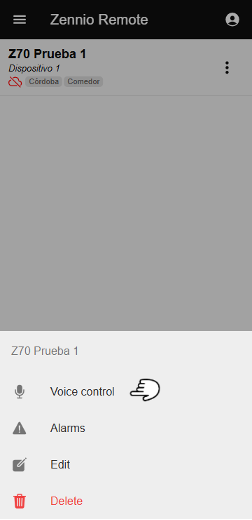
  1. In the device list, you have to identify the device on which you want to configure voice control. By clicking on the three dots located on the right of the device, several options will be displayed, including Voice Control.

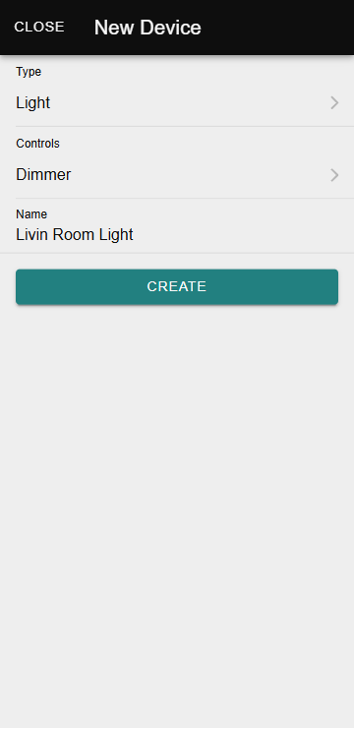
  1. A new window will open where you have to add the devices you want to control by voice with the following information:
  • Device type
  • Control configured in the ZRCD
  • Device name in voice assistants

For more detailed information, please refer to the ZenVoice manual.

If you have any doubts about how to pair your voice assistant with ZenVoice, we suggest you consult our ZenVoice User Guide.